For business events
Event Q&A, Polls & Quizzes That Give The Whole Room A Voice.
EveryExtra LIVE brings event Q&A, polls & quizzes to your audience. They ask questions, vote, share ideas and play along from their phones. Your presenter sees it all on a private link, and the results build live on the big screen.
Included with business event packages. No app for attendees.
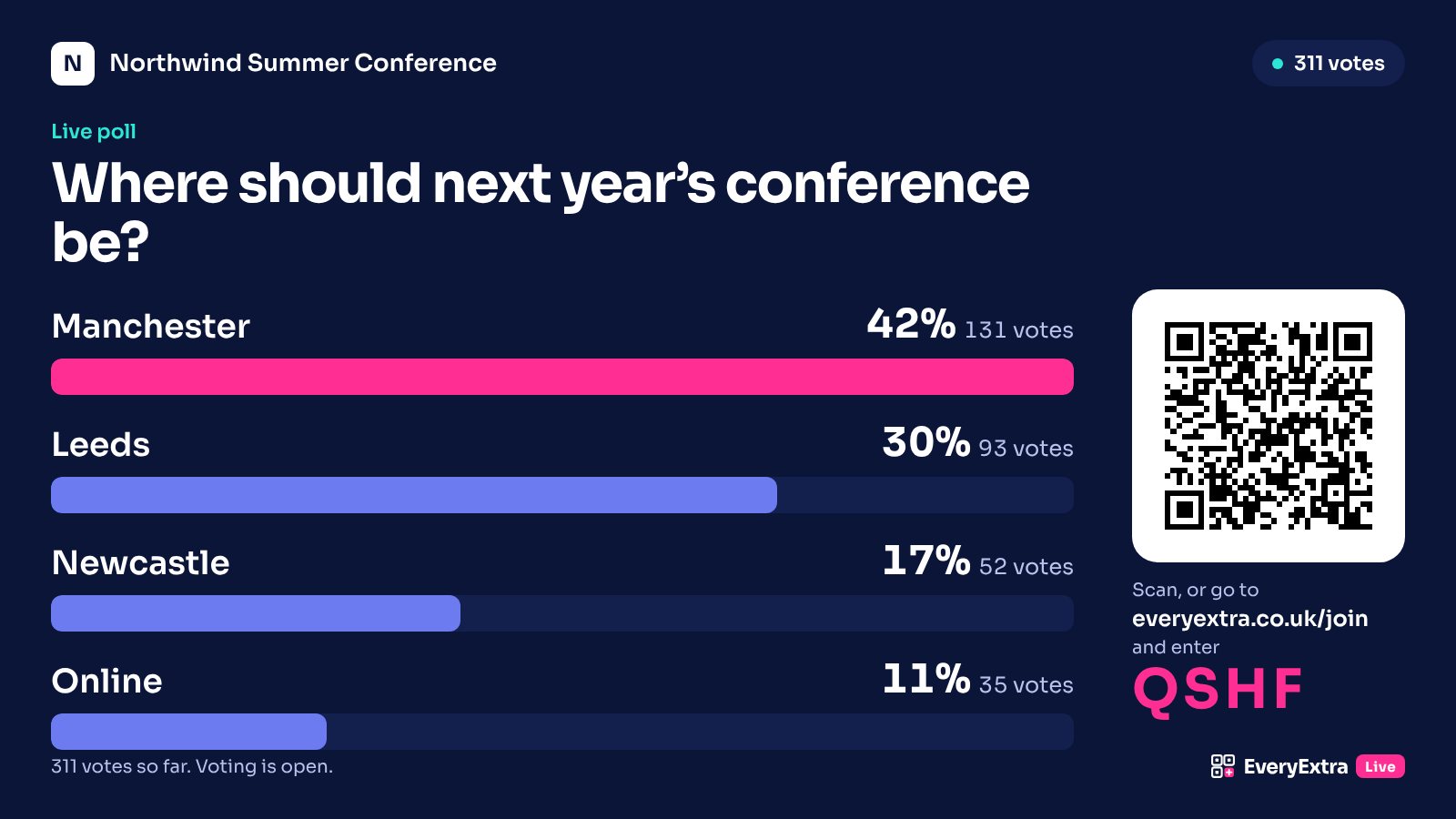
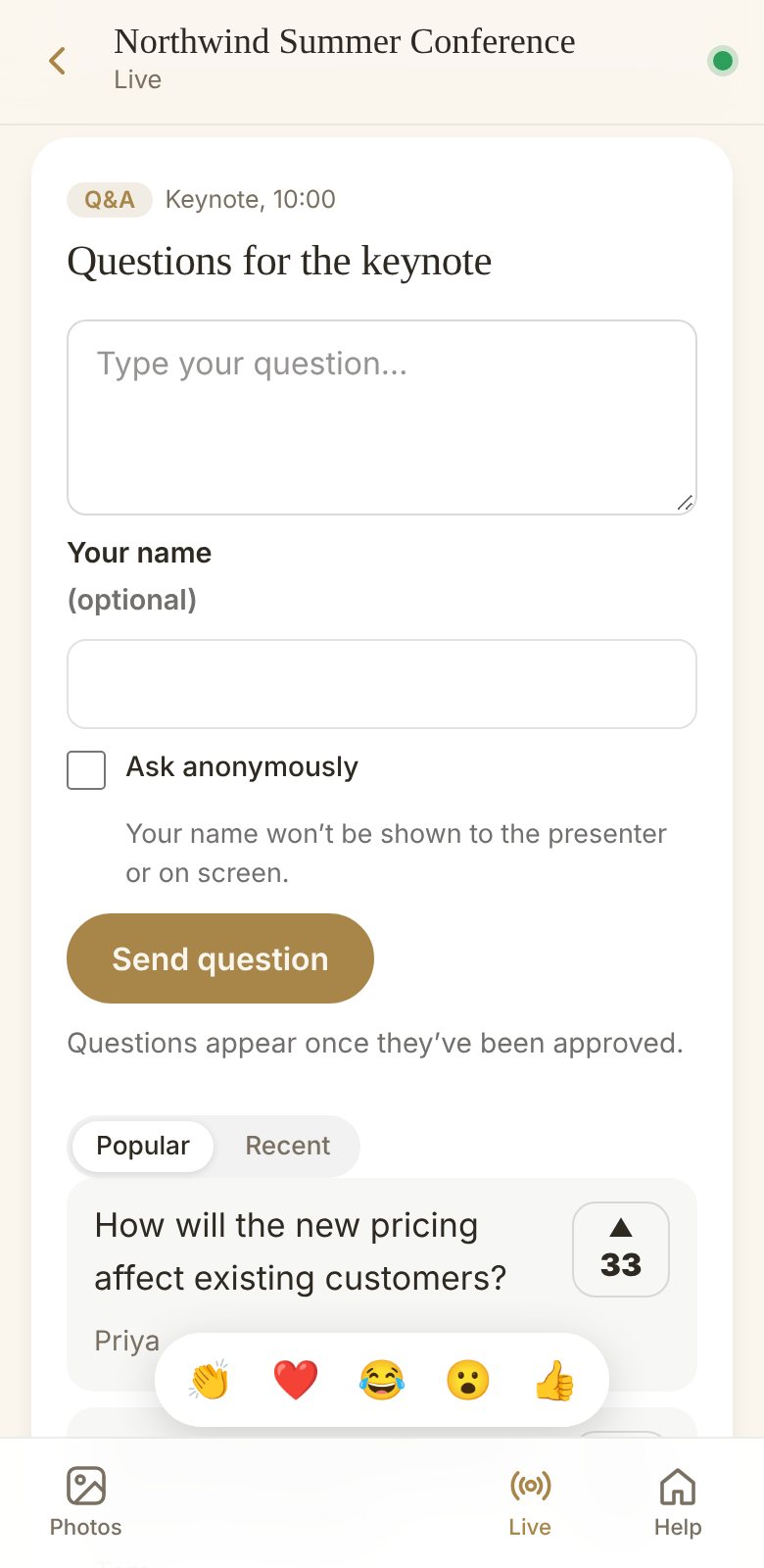
The big screen and an attendee’s phone, during a live poll and Q&A. These are real screens from the business demo.
EveryExtra LIVE In A Minute
Q&A, polls, word clouds, quizzes, awards and feedback, then the Afterglow.
Try It From Your Seat
The phone is yours. The screen is the one at the front of the room. Vote, add a word, back a question, answer the quiz or start the applause, and watch the big screen answer. Other people in the room join in as you go. Nothing you do here is saved or sent anywhere.
Where should next year’s conference be?
Turn on JavaScript to try this here, or open the business demo.
A live poll. Each phone votes once and the bars move as votes arrive.
Want the real thing? The business demo opens a sample conference with every activity ready to run, the Control room and the big screen.
Eight Ways To Involve The Room
Prepare them all before the day, then open each one at the right moment. Choose one to see what the room sees, what your presenter sees, and what you can change.
Live Q&A For The Questions Your Audience Actually Wants Answered.
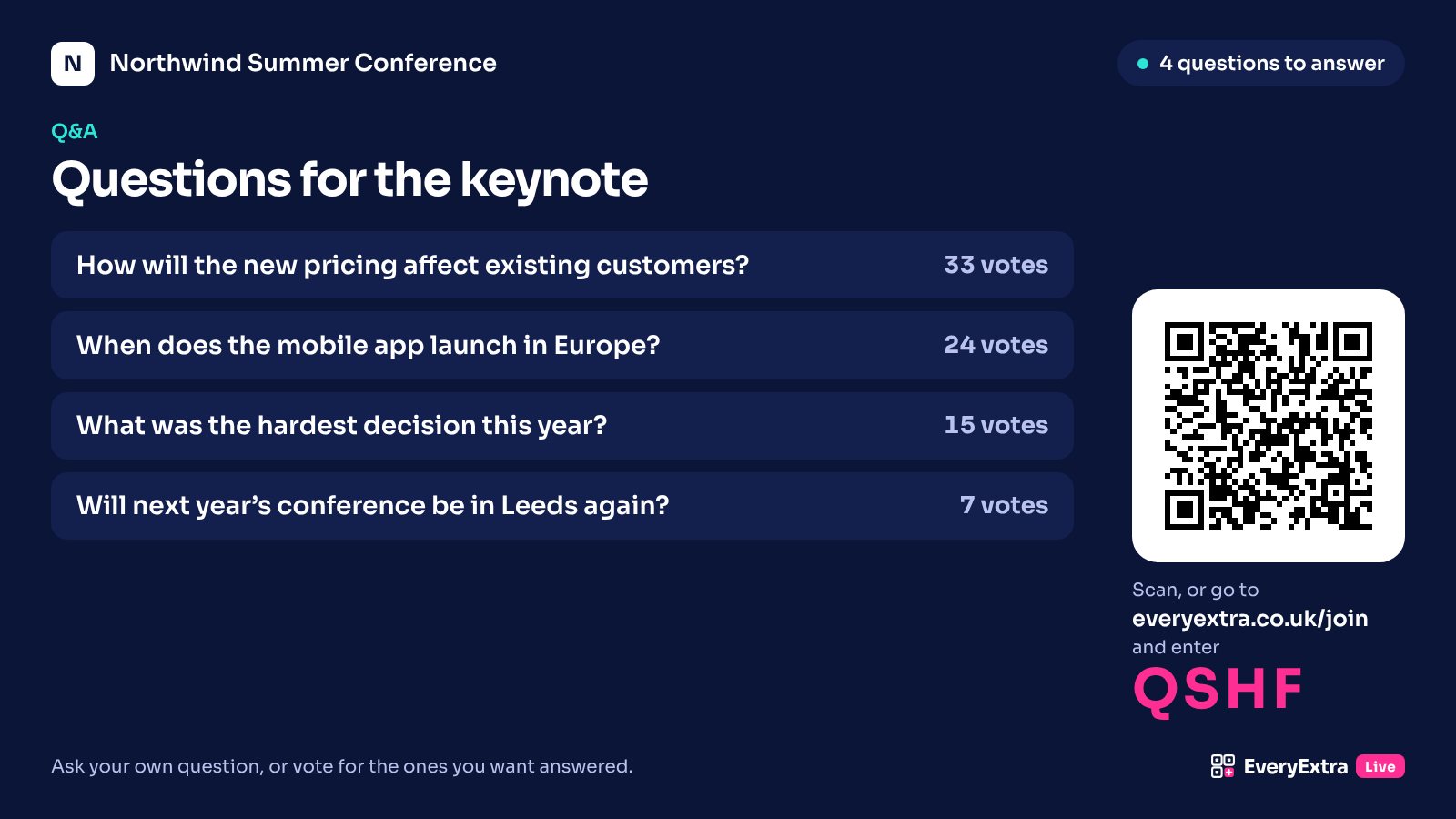
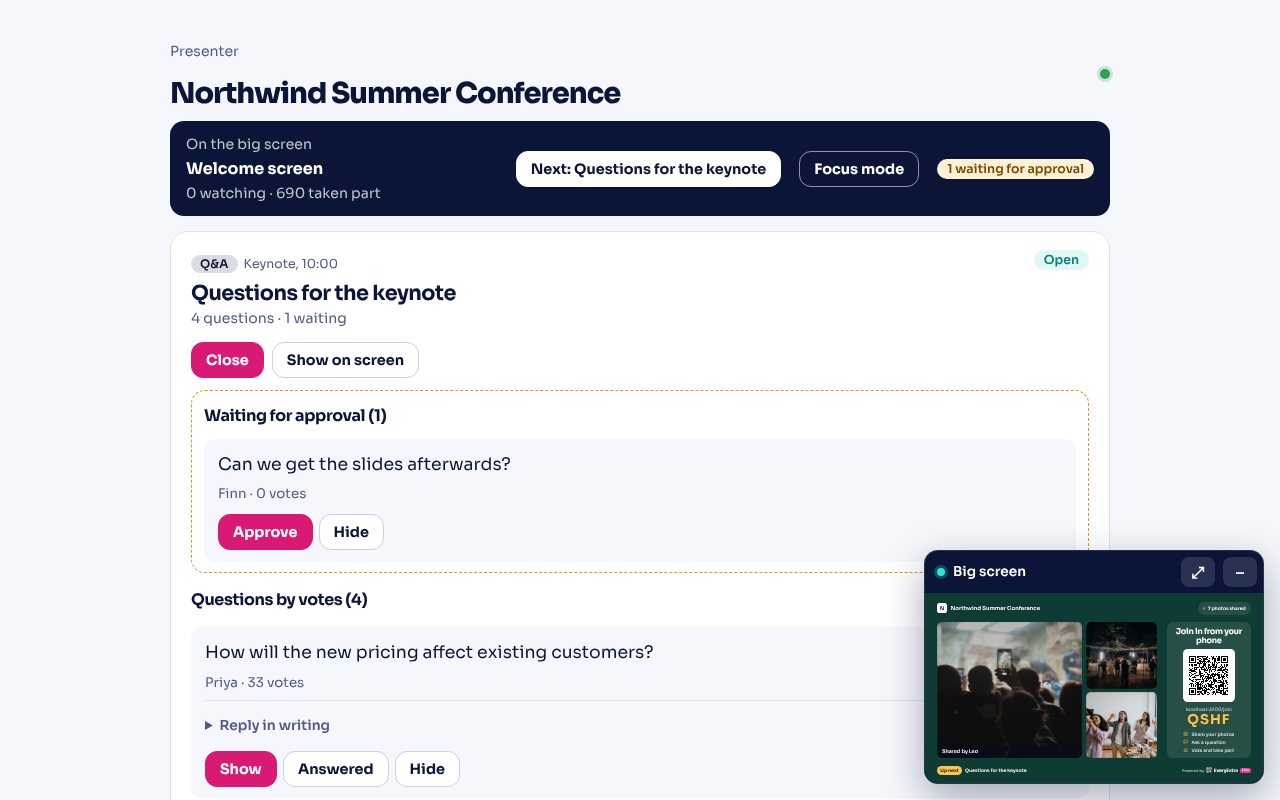
With live Q&A, attendees ask from their phones, by name or anonymously, and vote for the questions they care about. Your speaker sees them arrive on a private link, most popular first, and chooses what goes on the big screen.
- Attendees: Scan your event’s QR code, tap Live and type a question. Vote for other people’s with one tap. No app, no account
- Your speaker or host: A private presenter link shows questions as they arrive, sorted by votes, with buttons to show one on screen and mark it answered
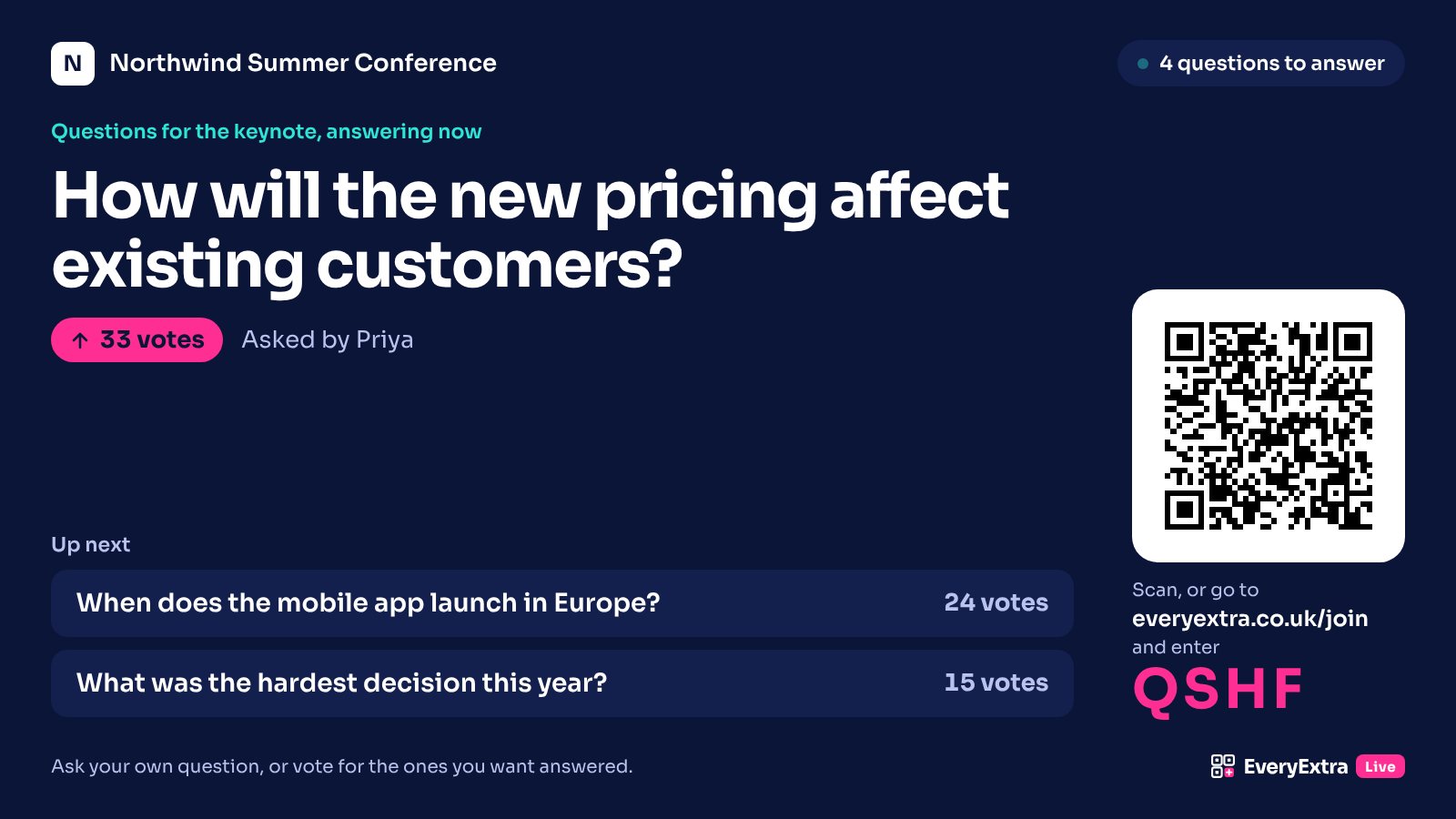
- The big screen: The top questions, or the one being answered right now, shown large with the code to join
Live Polls: Ask The Room, And Watch The Answer Build.
Live polls put a question to your whole audience, and you see the bars move as people vote from their phones. Show the result live, or reveal it when voting closes.
- Attendees: Tap an option and press Vote. They can change their mind until you close the poll
- You or your presenter: Open and close each poll with one button, and put it on the big screen when you’re ready
- The big screen: A live bar chart with the number and percentage for each option, updating as votes arrive
Live Word Clouds: One Word From Everyone, One Picture Of The Room.
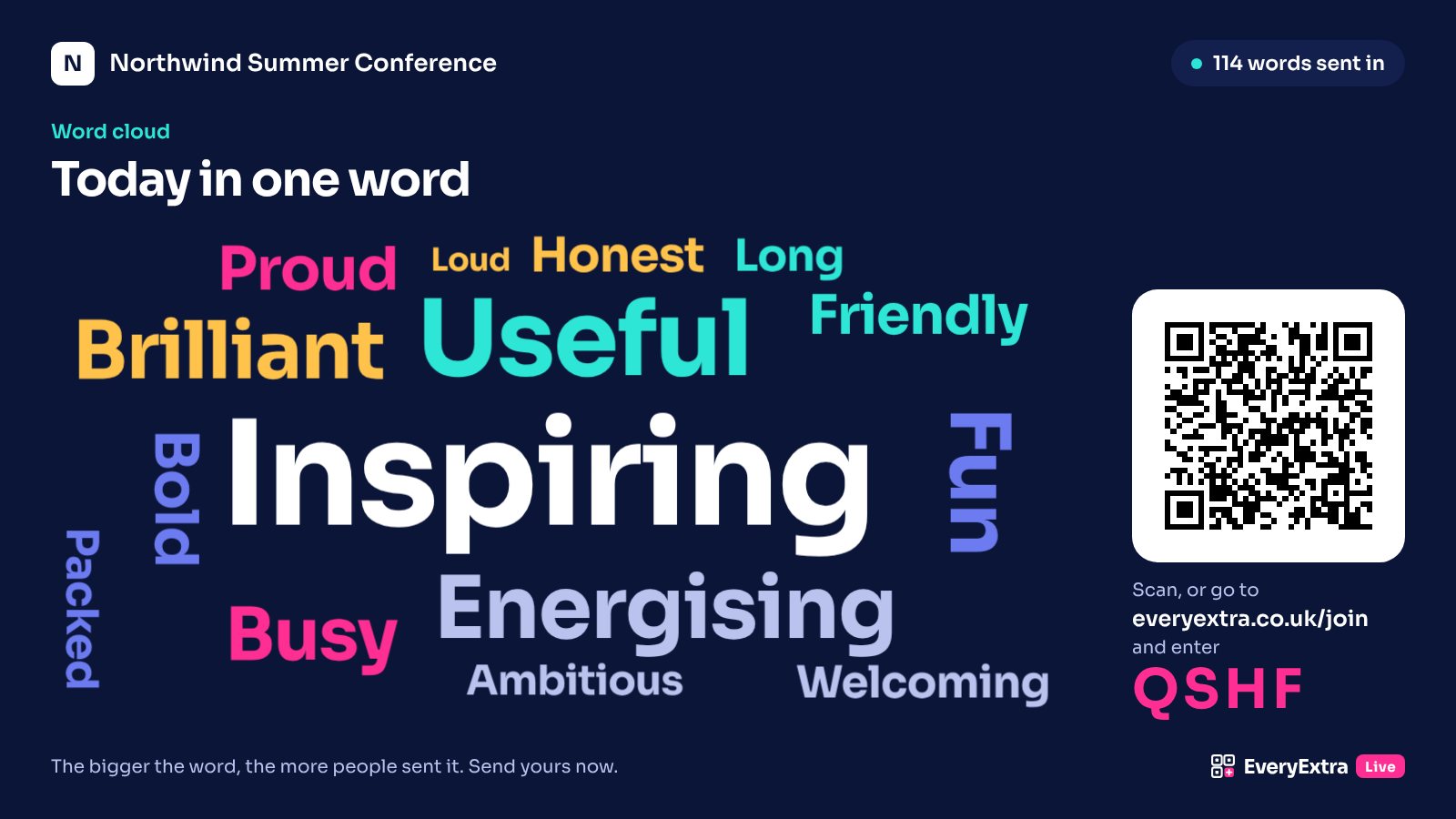
Live word clouds start with a simple question, like “Today in one word”. Each answer joins the cloud on the big screen, and the words most people choose grow the largest.
- Attendees: Type a word or short phrase and send. They can add a few each, as many as you allow
- You or your presenter: Open the cloud, put it on screen and watch it fill. Approve words first if you prefer
- The big screen: A cloud that grows as answers arrive, with the most common words largest
An Ideas Board With Voting, Ranked By The Room.
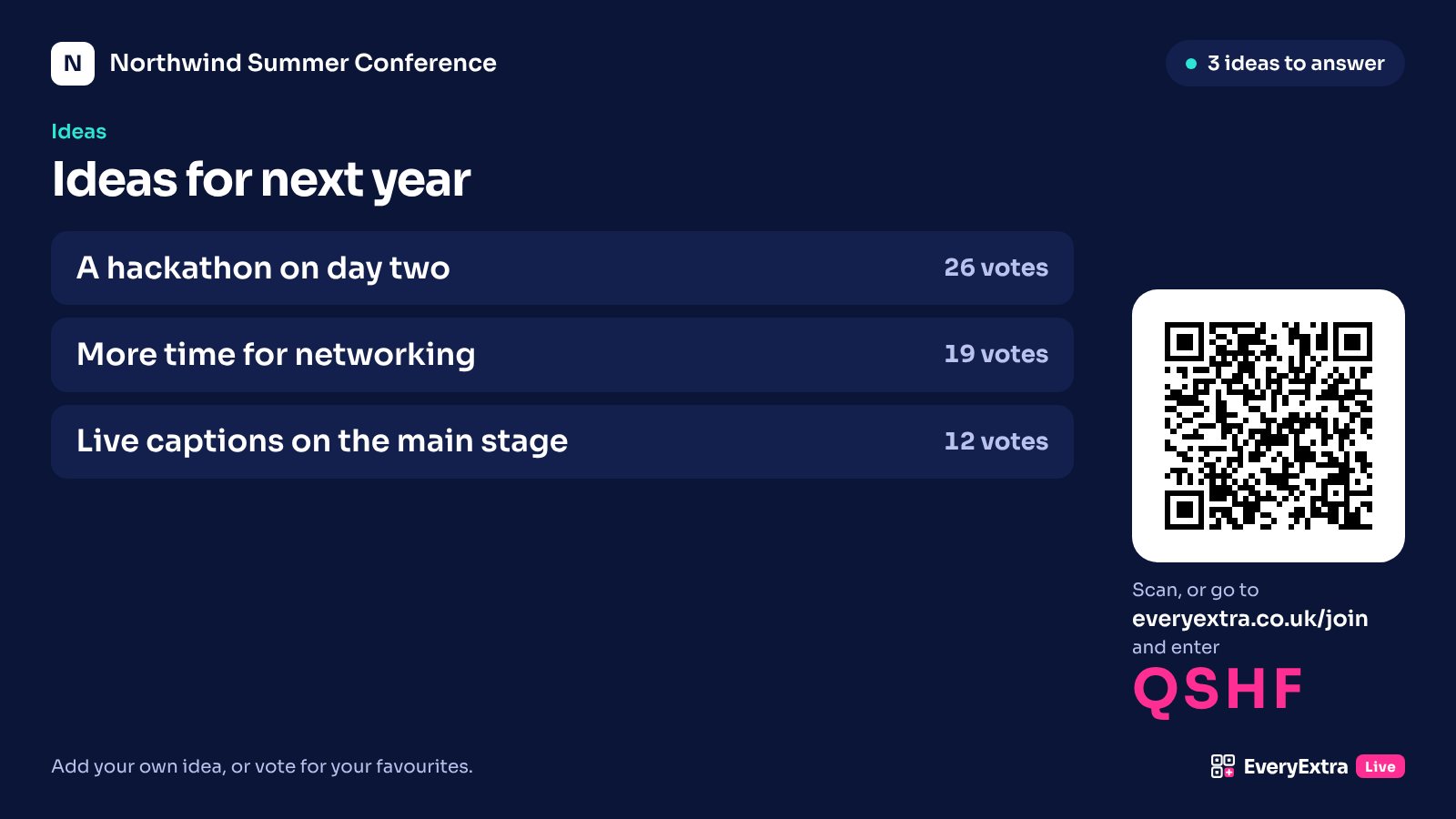
An ideas board with voting gives everyone a way to suggest an idea, not only the people who speak up. Then the room votes, and you see what rises to the top.
- Attendees: Type an idea and send it. Read everyone else’s and vote for the ones they’d back
- You or your presenter: Approve ideas as they arrive, close new ideas when it’s time to vote, and show the leaders on screen
- The big screen: The top ideas by votes, or one idea shown large while you talk about it
A Live Quiz The Whole Room Can Play.
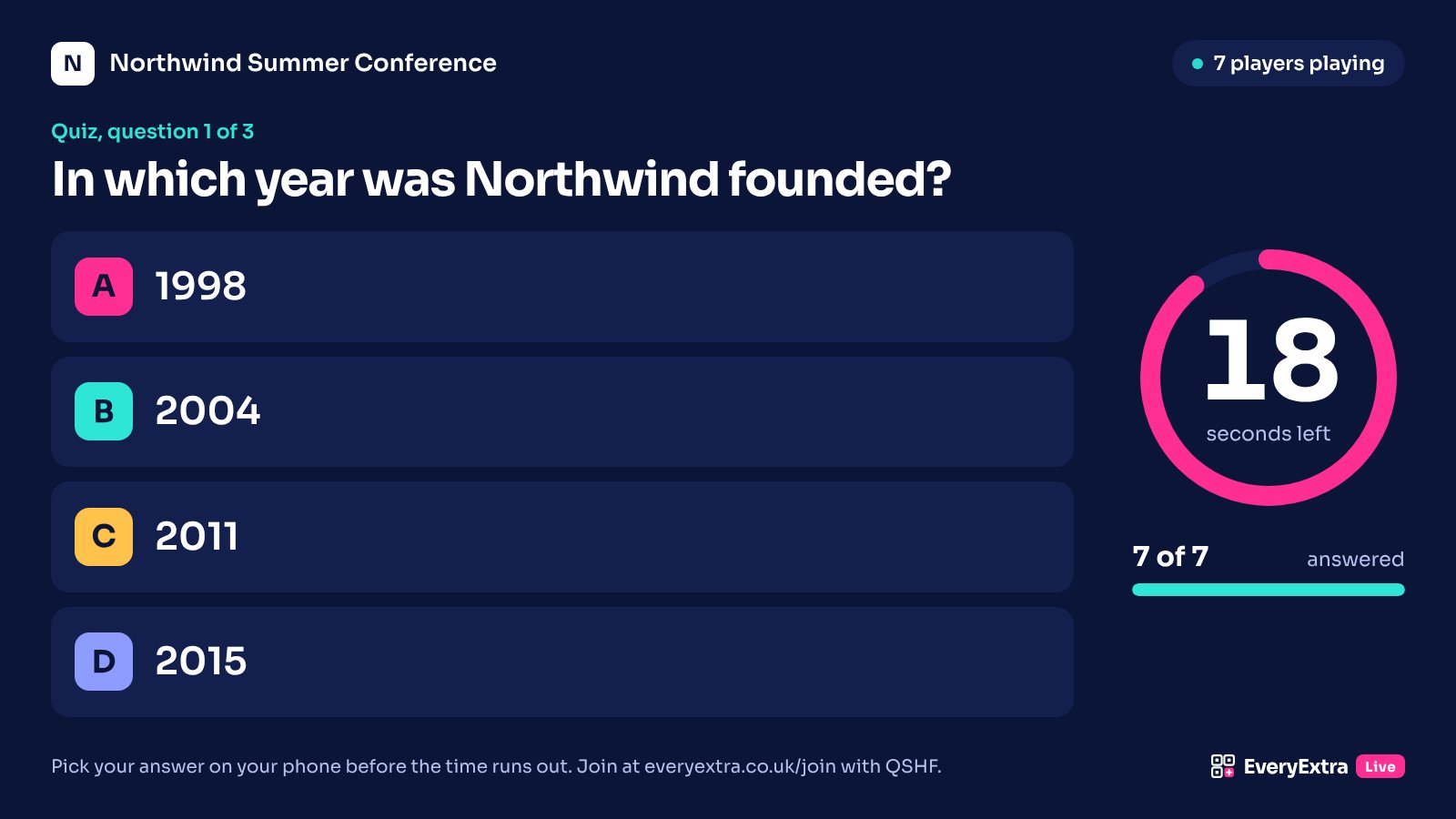
In a live quiz, questions appear on the big screen, attendees answer on their phones against the clock, and the leaderboard updates after every question. Faster right answers score more.
- Attendees: Enter a name, then tap an answer before the timer runs out. They see if they were right and where they stand
- You or your host: Start the quiz, show each answer and move on, from your dashboard or the presenter link
- The big screen: The question, four coloured answers and a countdown. Then the right answer, the leaderboard and, at the end, the winners’ podium
Event Feedback Surveys, While People Are Still In The Room.
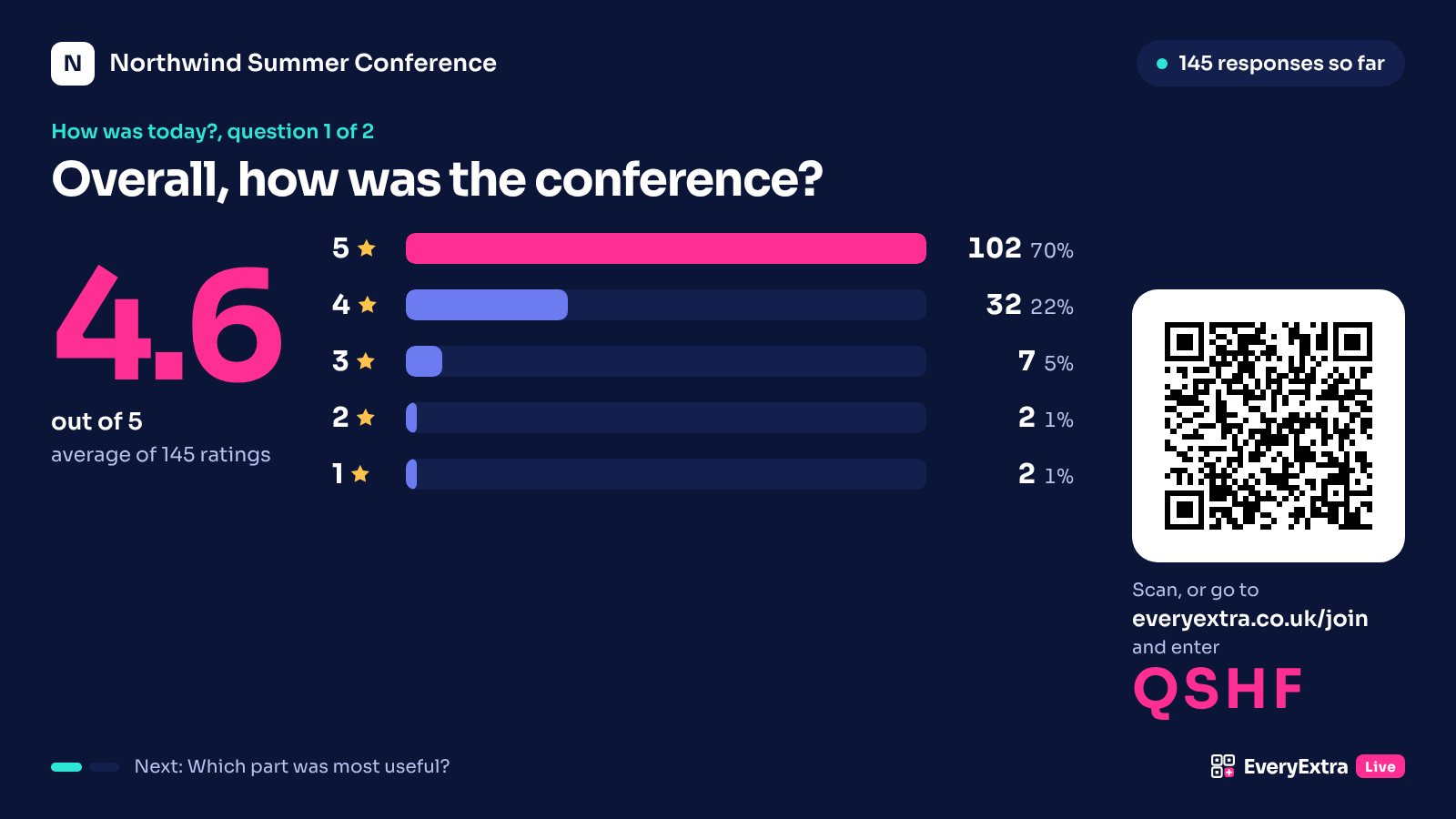
Event feedback surveys ask a few questions at the end of your event, and people answer on the phone already in their hand. Response rates beat an email sent the next day, and the results are ready before you’ve packed up.
- Attendees: Rate with stars, choose an option or write a few words, at their own pace. Anonymous unless you ask for names
- You: Watch responses arrive, then download the PDF report or the spreadsheet
- The big screen: Optional live charts: the average rating and a bar for each answer. Written answers are counted, never shown
Spin The Wheel, And The Whole Room Holds Its Breath.
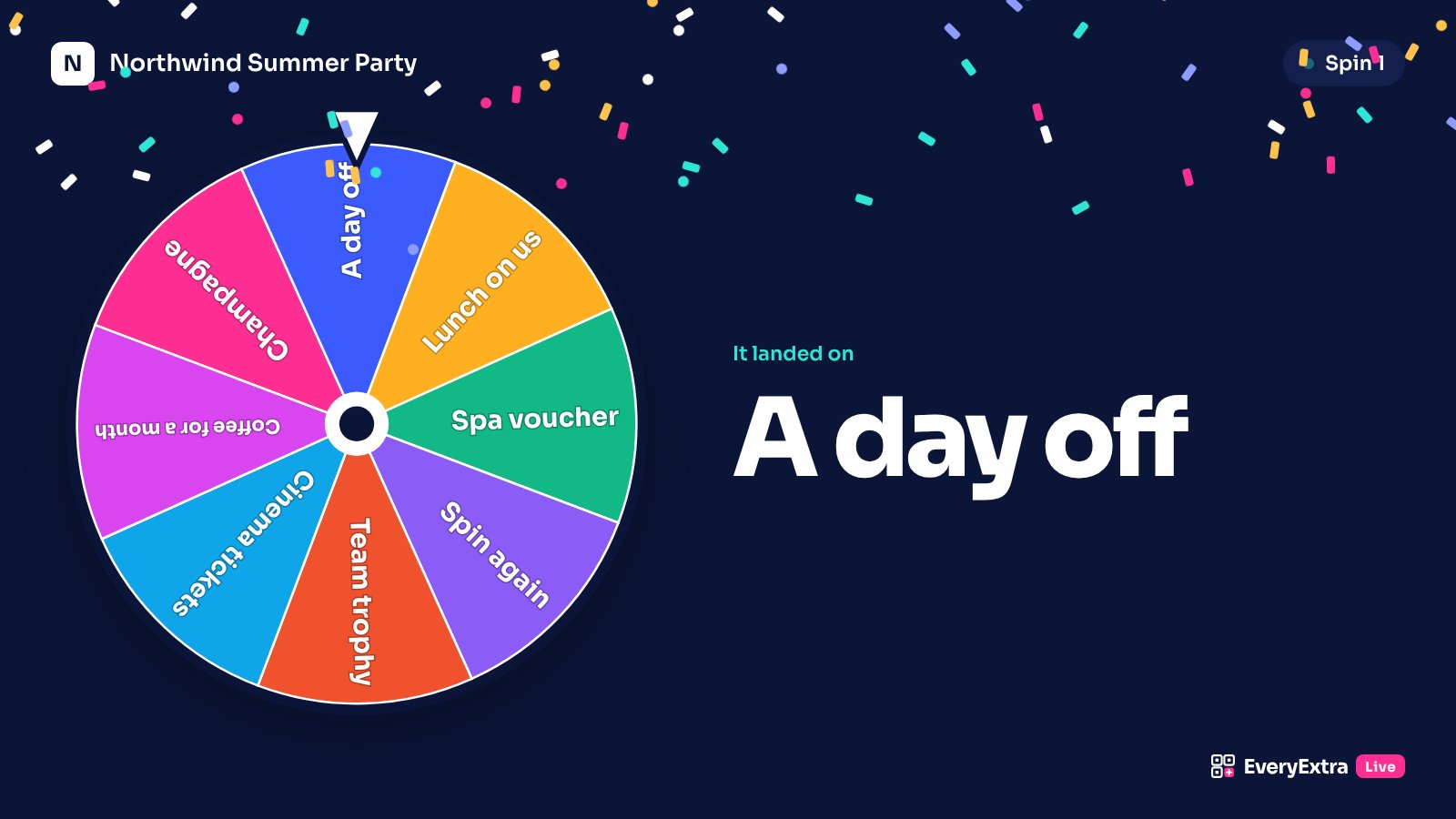
Spin the wheel with names, prizes, tables or outcomes on it. It spins on the big screen and on every phone at the same moment, and everyone sees where it lands together.
- Your host: Presses Spin from a laptop, a tablet or the presenter link
- The big screen: The wheel turns, slows and stops, then the result fills the screen with confetti
- Attendees’ phones: The same wheel turns on the Live tab, so people at the back or at home see it land too
An Awards Night Presentation, With Every Winner On Every Screen.
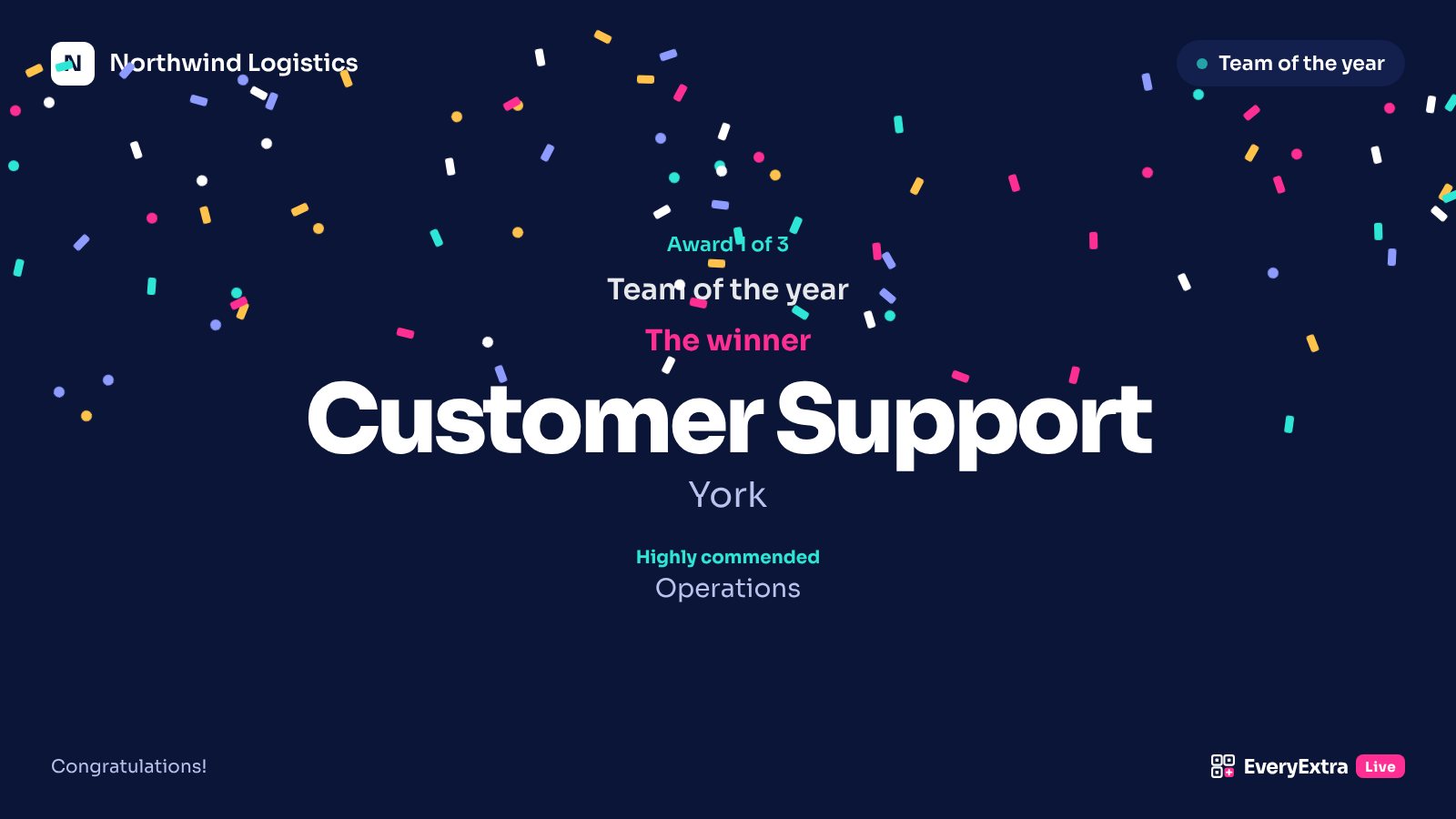
Put your awards night presentation on the big screen without building a slide deck. Step through each award, its nominees, the finalists and the winner, and every announcement reaches attendees’ phones too, so people watching from home or the back of the room see it as it happens.
- Your host: Presses Next from a laptop, a tablet or the presenter link. They see what’s coming; nobody else does
- The big screen: The award’s name, the nominees, the finalists, a drum roll and then the winner, large, with confetti and a fanfare
- Attendees’ phones: Each moment arrives on the Live tab as it’s shown, with a list of every winner so far to look back on
One Event, Four Screens
Everyone uses a link. Nobody installs anything, and only you need to sign in.
A Live Tab, From The Same QR Code
Attendees scan the code they already used to share photos and land on the Live tab. It changes by itself as you open each activity, so nobody has to refresh or look for the right link.
- No app, no account, no password
- Works on any phone with a browser
- Ask for a name and work email if you need stricter voting, one vote per address
- The agenda for the day, with what’s on now
Everything The Speaker Needs, On One Private Link
Questions arrive as they’re asked, sorted by votes, with buttons to approve, show on screen and mark answered. The speaker can move their own slides, see how long they have left and read the next slide before it appears.
- No sign-in: send it by email or open it on the lectern laptop
- A separate link for each speaker’s session
- Works with a presentation clicker and the arrow keys
- Replace the link at any time and the old one stops working
Made To Be Read From The Back Of The Room
Open one link on the venue’s display and leave it. It shows whatever you’ve opened: the poll, the word cloud, the question being answered, the quiz, or attendees’ photos in between. Every screen carries the QR code and the code to join.
- Stage, Daylight or your own brand colours
- Your logo in the corner of every screen
- Plays slides, PDFs and videos, so there’s no swapping laptops
- Results within two seconds, even in a full hall
The Whole Day On One Page
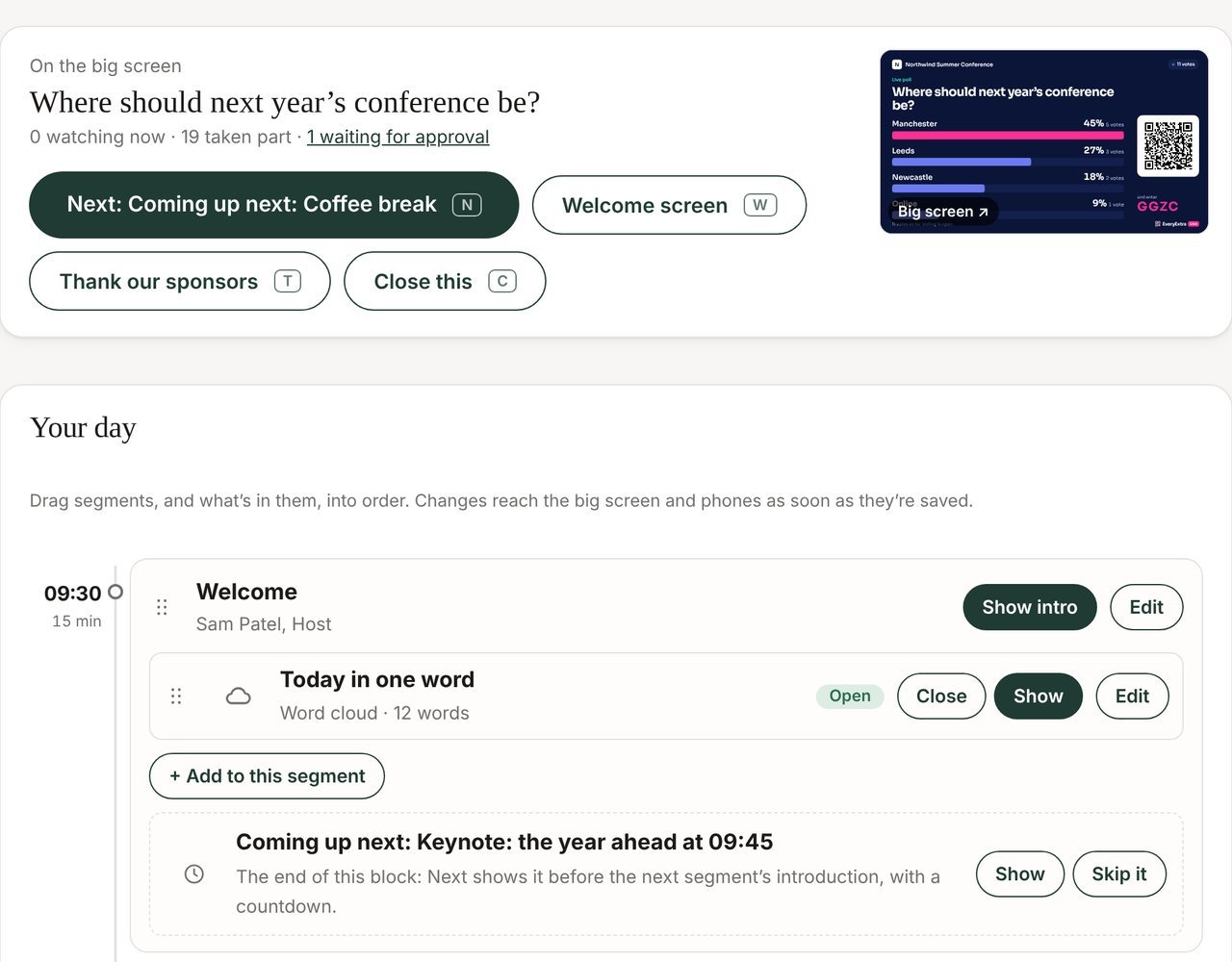
Your running order as a timeline of segments, each with its slides, videos and activities inside. Drag anything into a new order, even mid-event. One large Next button works through it all, with keyboard shortcuts for running it from the side of the stage.
- Several days in one event, each with its own running order
- Activities that open and close by the clock
- “Coming up next” at the end of each block, or skip it
- A moderator link for a colleague to approve and reply
Press Next. Run The Whole Day.
The Control room holds your day as a timeline, and one large Next button works through it on the big screen. Press Next below to walk through a conference the way the room sees it. These are real screens from the business demo.
The Photo Wall
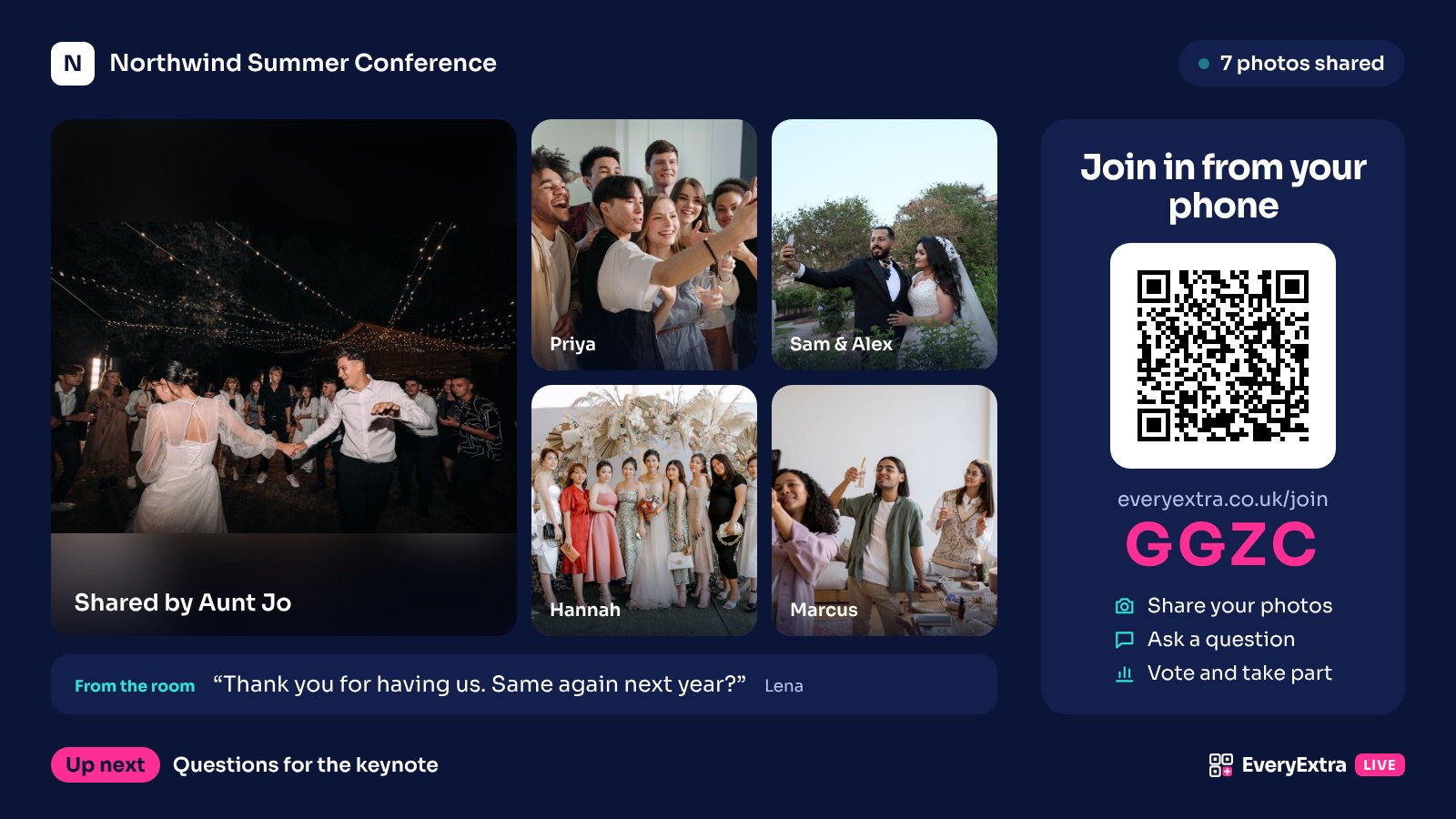
While people find their seats, the big screen plays attendees’ photos as they’re shared, with the QR code and a four-letter code to join. Nobody downloads an app or makes an account.
Each Speaker Introduced
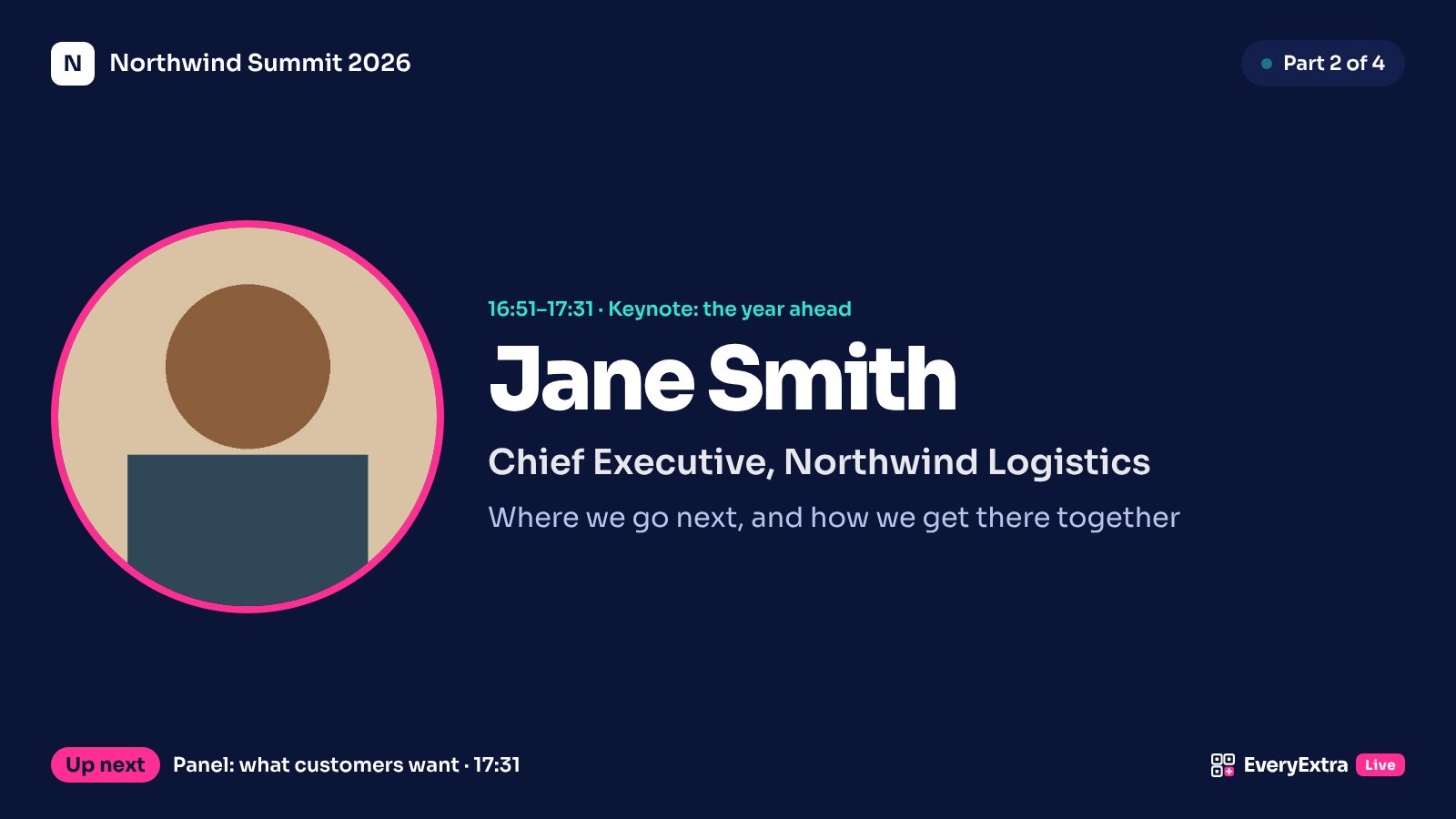
Every segment opens with the speaker’s name, role and photo, large enough to read from the back, with what’s up next along the bottom.
A Poll Mid-talk
The speaker asks, the room answers, and the bars move as votes arrive. Close it when you’re ready and the result stays on screen.
One Question In The Spotlight
Questions arrive on the presenter’s link sorted by votes. Approve one and put it on the big screen, with who asked it and how many people backed it.
The Room In One Word
Words pack themselves into a cloud as they arrive, the most-sent largest. Anything that might be rude waits for you to check first.
Coming Up Next, At The End Of The Block
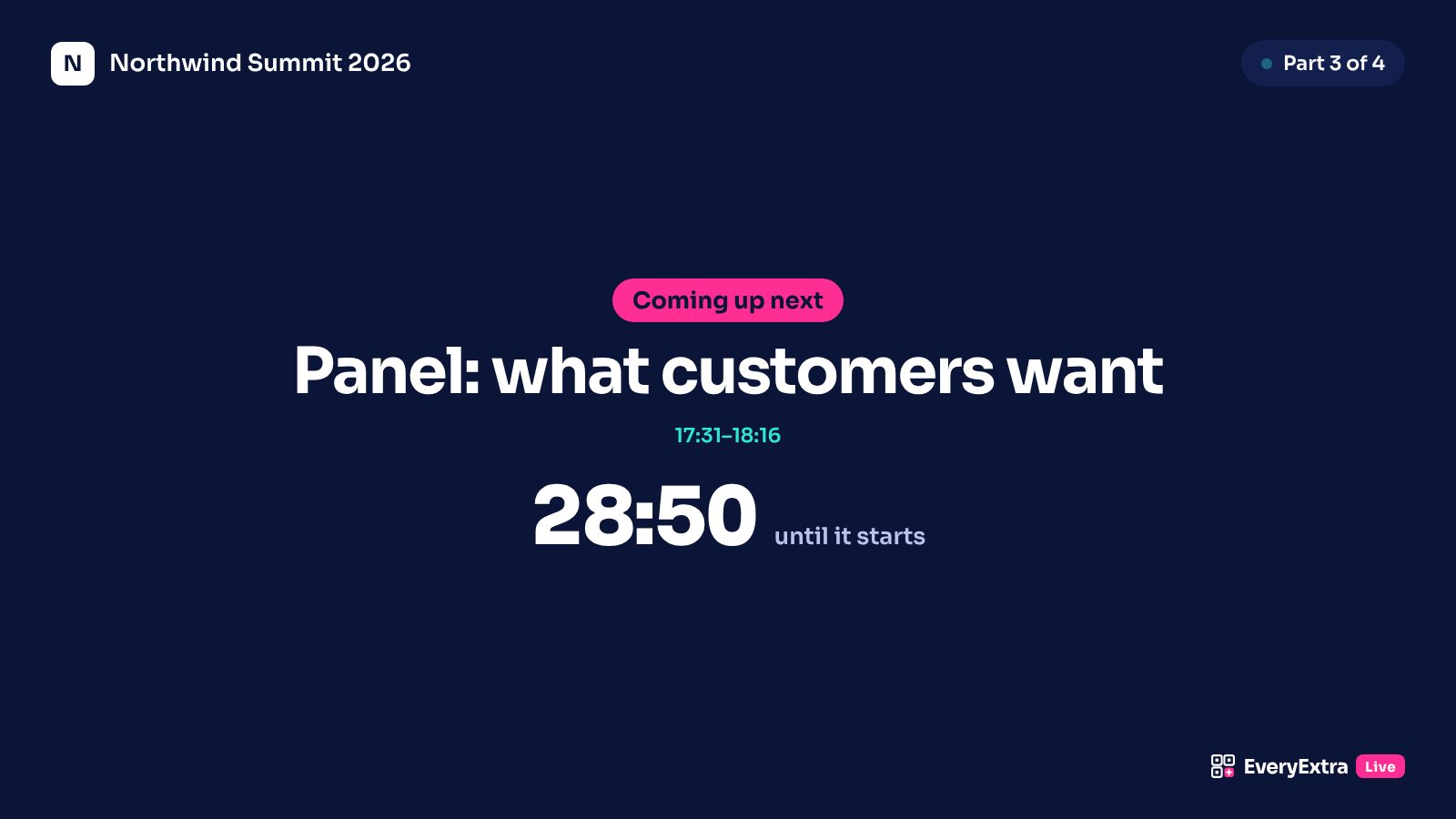
When a segment finishes, the screen shows what’s next with a clock counting down to it, so people know how long they have for coffee.
An Announcement With A Countdown
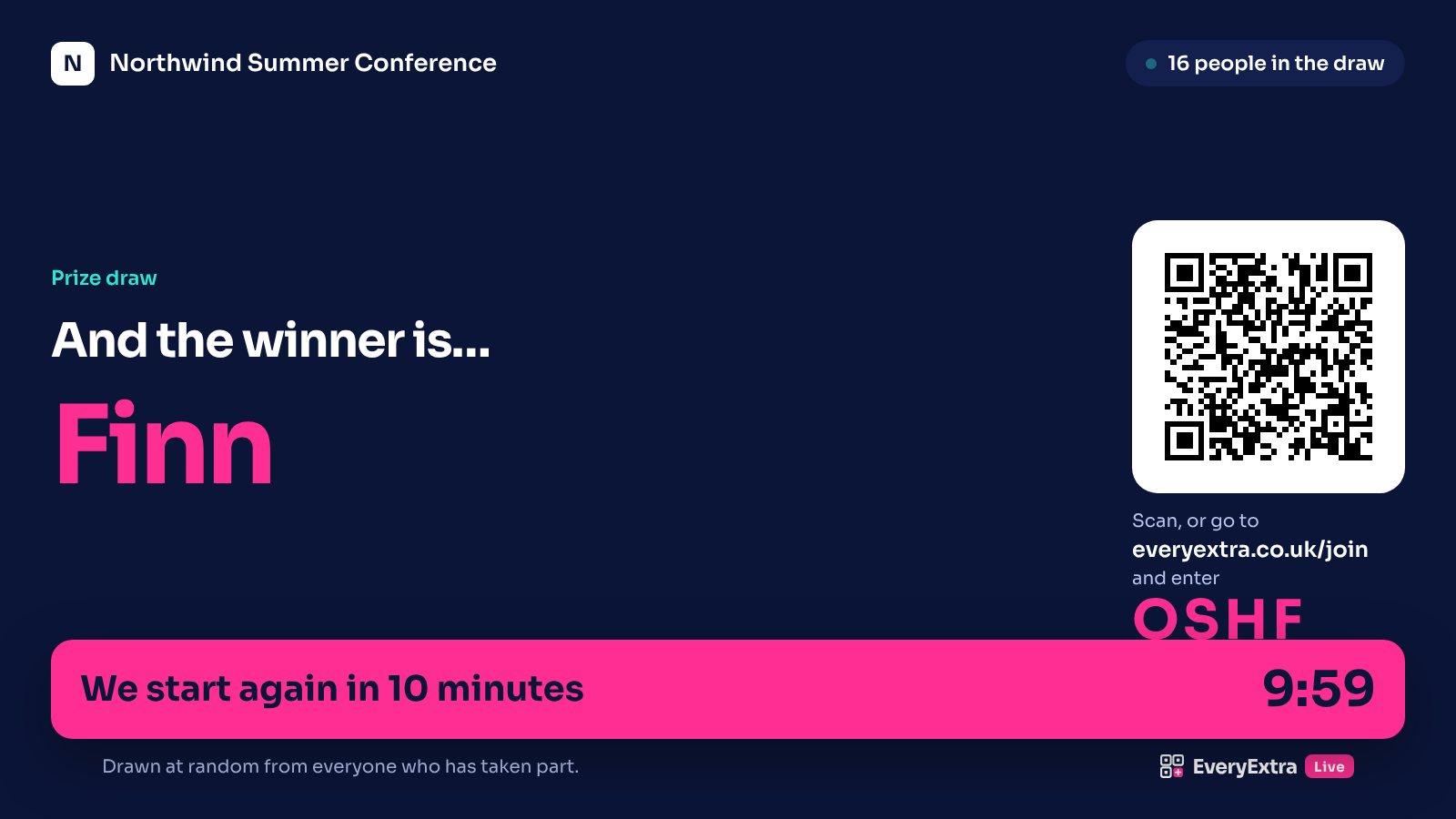
Send “We start again in 10 minutes” to every phone and across the big screen, with a clock that counts itself down.
A Quiz To Wake The Room Up
Four answers, a countdown, points for speed and a leaderboard between questions. Names on the leaderboard are checked for anything rude.
The Awards, Revealed
Step through each award: the nominees, the finalists, then the winner. Every announcement reaches attendees’ phones at the same moment, so the back of the room sees it too.
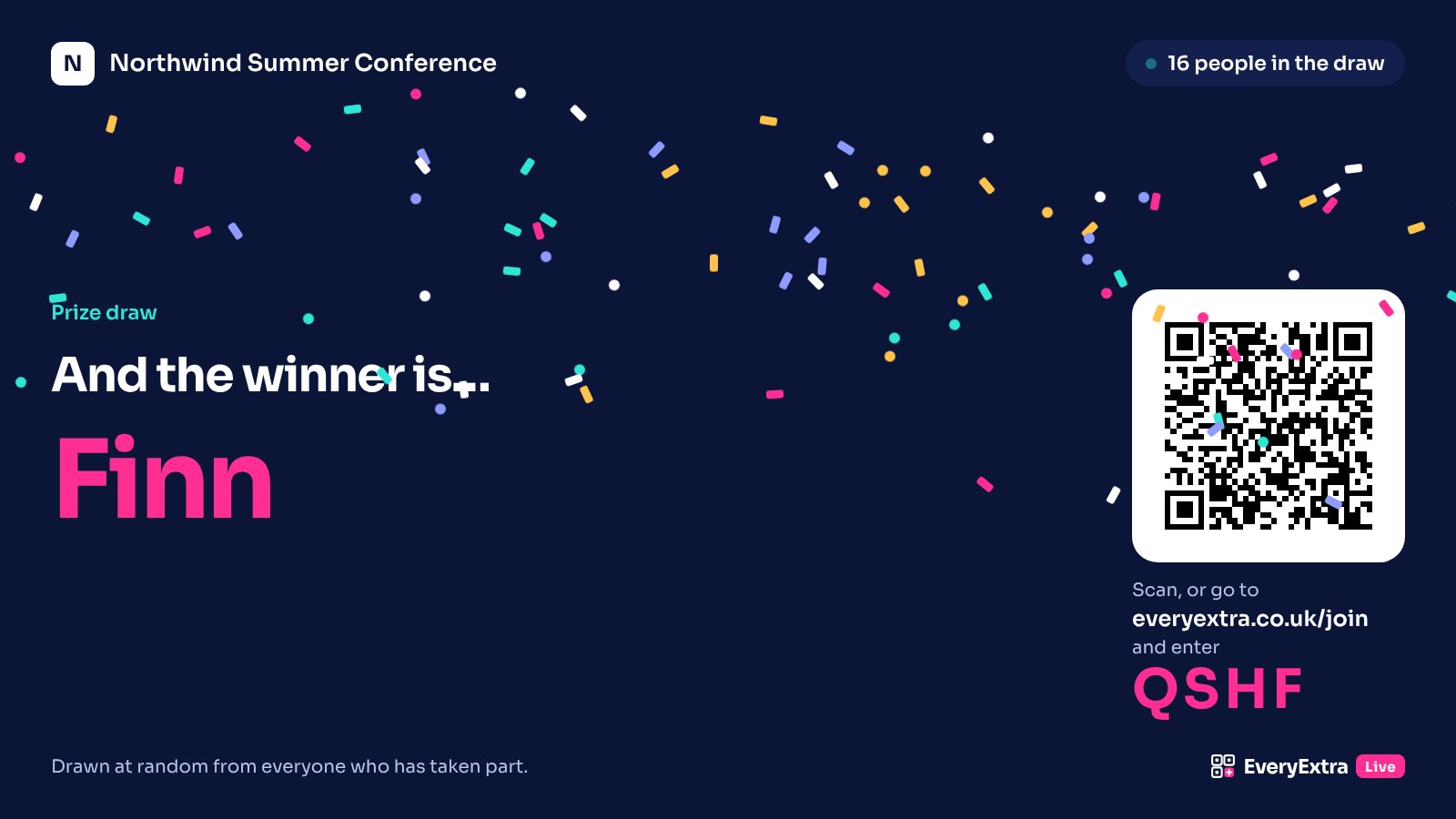
A Prize Draw To Finish
Pick a winner at random from everyone who took part, with a drum roll and confetti. It’s a reason to join in from the very first poll.
Your Whole Day On The Big Screen
Build the running order in segments: a welcome, each speaker with their slides, a panel, lunch, the awards. The big screen never leaves EveryExtra LIVE, so there’s no swapping laptops between talks.
Each speaker introduced on the big screen, with their photo and what’s up next
“Coming up next”, with a clock counting down to the next session
Slides And Videos Built In
Upload a speaker’s PowerPoint and it plays with its animations and videos, or use a PDF that works with no internet. Play videos you’ve uploaded, straight from the screen laptop, or from YouTube. Or hand over to PowerPoint itself with a holding slide, while phones keep the questions coming. Cut to a poll and back without losing your place.
A Clicker That Just Works
Speakers move their own slides on from their presenter link, with Back and Next, the arrow keys or a presentation clicker. Or you run them from the Control room.
A Countdown For Every Speaker
Their presenter link shows how long they have left, their slide now and the next one, and their own Q&A.
Title Slides And Countdowns
A title slide for lunch, a break or a new section, and “Coming up next” at the end of each block, with a clock counting down to the next session. Skip it for any block where you don’t need it.
The Photo Wall
Between activities the big screen becomes a photo wall: one big photo and four smaller ones from your attendees, shout-outs along the bottom and the code to join beside them. New photos arrive full size, then settle in. Press W to put it up at any time.
Announcements
Send a message to every phone and across the big screen: “Lunch is in the foyer”, or “Back in 10 minutes” with a clock counting down.
A Prize Draw
Pick a winner at random from everyone who took part, with a drum roll and confetti on the big screen.
Events Over Several Days
Add day two and day three to the same event. Each day has its own running order, and attendees see the agenda for each.
Opens By The Clock
Give an activity a start and finish time and it opens and closes itself.
Applause From Every Seat
Attendees tap applause, a heart or a laugh, and it floats up the big screen.
Keyboard Shortcuts
N for next, W for the Photo Wall, A to approve: quick enough to run from the side of the stage.
Three Looks, To Suit The Room
Choose one for each event and change it at any time, even mid-session. Your logo sits in the corner of all three.
Stage: deep navy with bright colour, for darkened rooms and LED walls
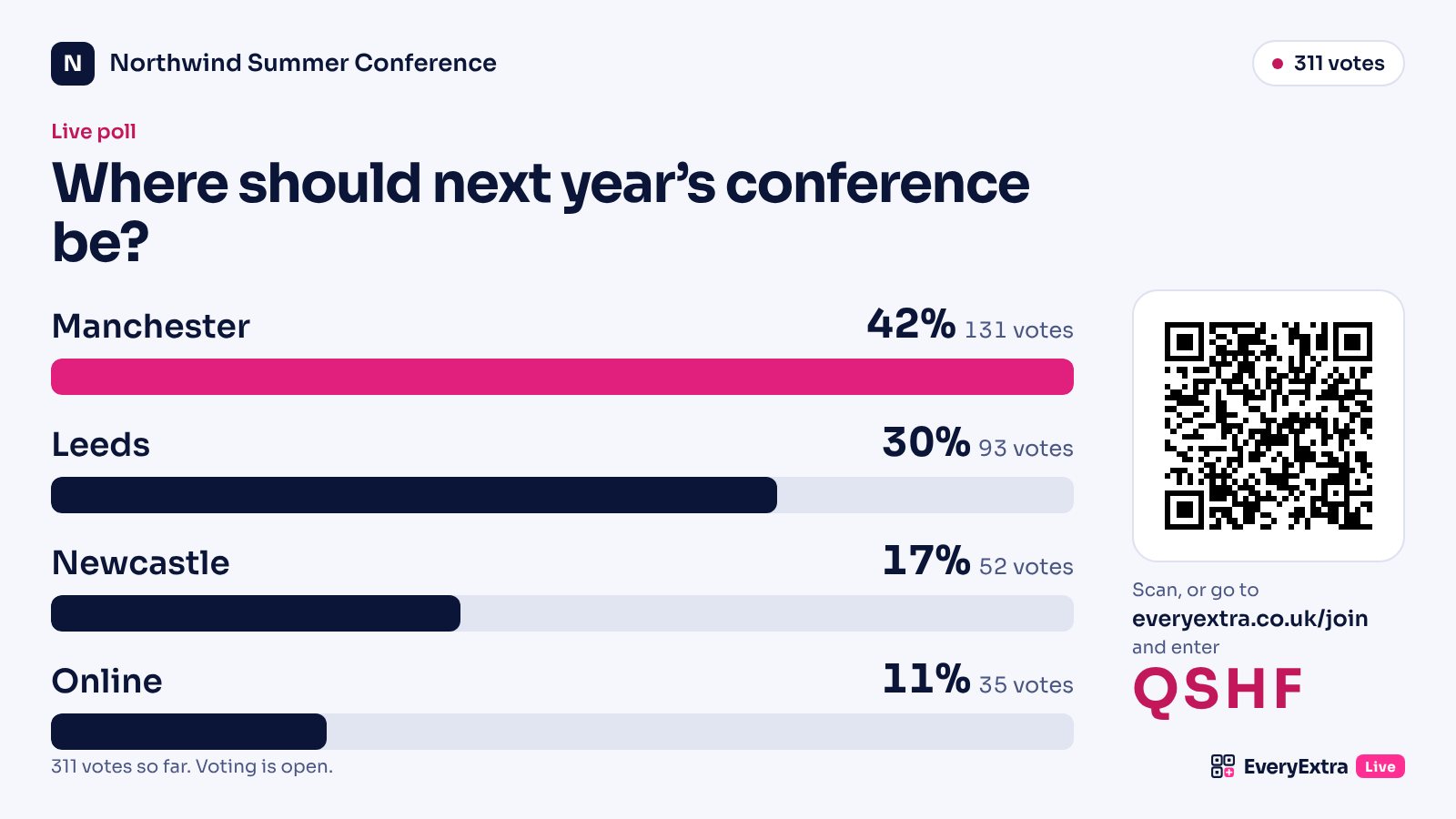
Daylight: a light background, for bright rooms and washed-out projectors
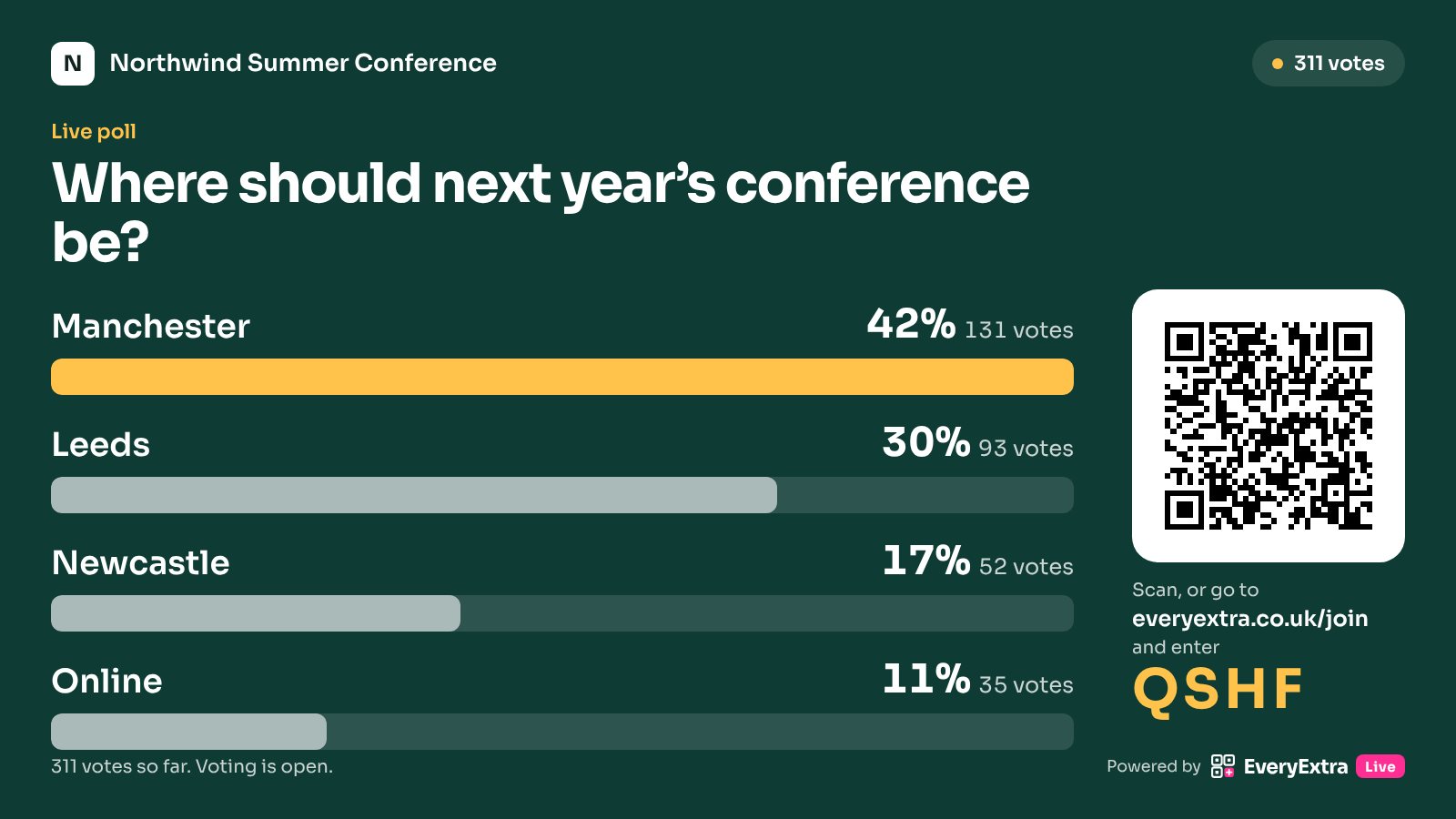
Your brand: your own background and accent colours
How It Works On The Day
Prepare Your Activities
Add a Q&A for each talk, a few polls, a quiz and a closing survey. Add photos or videos to any of them.
Share Two Links
Send your presenter their private link, and open the big-screen link on the venue’s display.
Open Each One As You Go
Attendees see it on their phones at once. Afterwards, download your event report.
You Stay In Control
Nothing reaches the screen that you wouldn’t want there.
Approval First
Questions and ideas wait for you or your presenter to approve them, unless you switch that off.
Rude Words Held Back
Anything that may be rude is always held for you to check, including names on the quiz leaderboard.
Private Links You Can Replace
If a presenter link goes astray, replace it and the old one stops working at once.
One Vote Each
Each phone votes once, and limits stop anyone flooding your screen. For stricter voting, ask for a name and email address: one vote per address.
Tested For Full Rooms
2,500 people voting inside 30 seconds, with no errors and results on screen within two seconds.
Deleted With Your Event
Everything collected stays with your event, and is deleted with it when your event closes.
A Report You Can Send The Same Day
When the event ends, download a designed PDF with the headline figures and a chart for every activity: each poll, the word cloud, the top questions and ideas, the quiz leaderboard and your survey ratings. Every question, vote and answer is also in a spreadsheet.
Because EveryExtra LIVE is part of your event’s gallery, the report sits beside everyone’s photos and the contact details attendees chose to share. It’s the evidence your sponsor, your board or next year’s budget will ask for.
Where should next year’s conference be?
Top questions
- How will the new pricing affect existing customers? 23
- Is the hybrid working policy changing? 17
Included With Your Event
EveryExtra LIVE isn’t sold on its own. It comes with our business event packages, alongside photo sharing, your logo on everything and attendees’ contact details.
Business Plus £199
Every activity. One-off payment for one event.
Business Bundle £795
Every activity. One-off payment for one event.
Business Subscriptions Monthly Or Yearly
Running events all year? Subscribe, and your whole team creates events whenever they need them.
Your Questions Answered
Do attendees need an app?
No. They scan your event’s QR code, tap Live and take part in their phone’s browser. There’s nothing to download and no account to make.
How is it different from other audience tools?
It’s part of your event’s gallery. The same QR code collects everyone’s photos, shows the slideshow and runs your Q&A, polls and quiz, under your logo, with one report at the end.
How many people can take part?
We’ve tested 2,500 attendees voting inside 30 seconds with no errors. If you’re planning something larger, tell us and we’ll plan it with you.
Who controls what appears on screen?
You do. Questions and ideas wait for approval by default, anything that may be rude is always held back, and you or your presenter choose what goes on the big screen.
Which packages include it?
EveryExtra LIVE comes with our business event packages and business subscriptions, when you book with us directly. The pricing page shows which activities each one includes.
What do we get afterwards?
A designed PDF report with a one-page summary and a chart for every activity, which you can email to your team from the Results page, and a spreadsheet of every question, vote and answer. Any chart also downloads as a picture for your slides.
What if people can’t scan the QR code?
Every screen shows a short address and a four-letter code beside the QR code. They type the address, enter the code and they’re in.
Can our speakers use their PowerPoint slides?
Yes. Save the deck as a PDF (PowerPoint, Keynote and Google Slides all do) and upload it to the speaker’s segment, or paste a PowerPoint Online or Google Slides link. They show full screen, and the speaker moves them on with a clicker or from their own link.
Can we match the screen to our brand?
Yes. Choose the Your brand look and set your own background and accent colours. Your logo appears in the corner, and the same colours carry through to your PDF report.
Ready To Hear From The Whole Room?
Tell us about your event and we’ll reply with a price, usually within one working day. Or try it now in the business demo.