EveryExtra LIVE
Live Q&A For The Questions Your Audience Actually Wants Answered.
With live Q&A, attendees ask from their phones, by name or anonymously, and vote for the questions they care about. Your speaker sees them arrive on a private link, most popular first, and chooses what goes on the big screen.
Included with business event packages. No app for attendees.
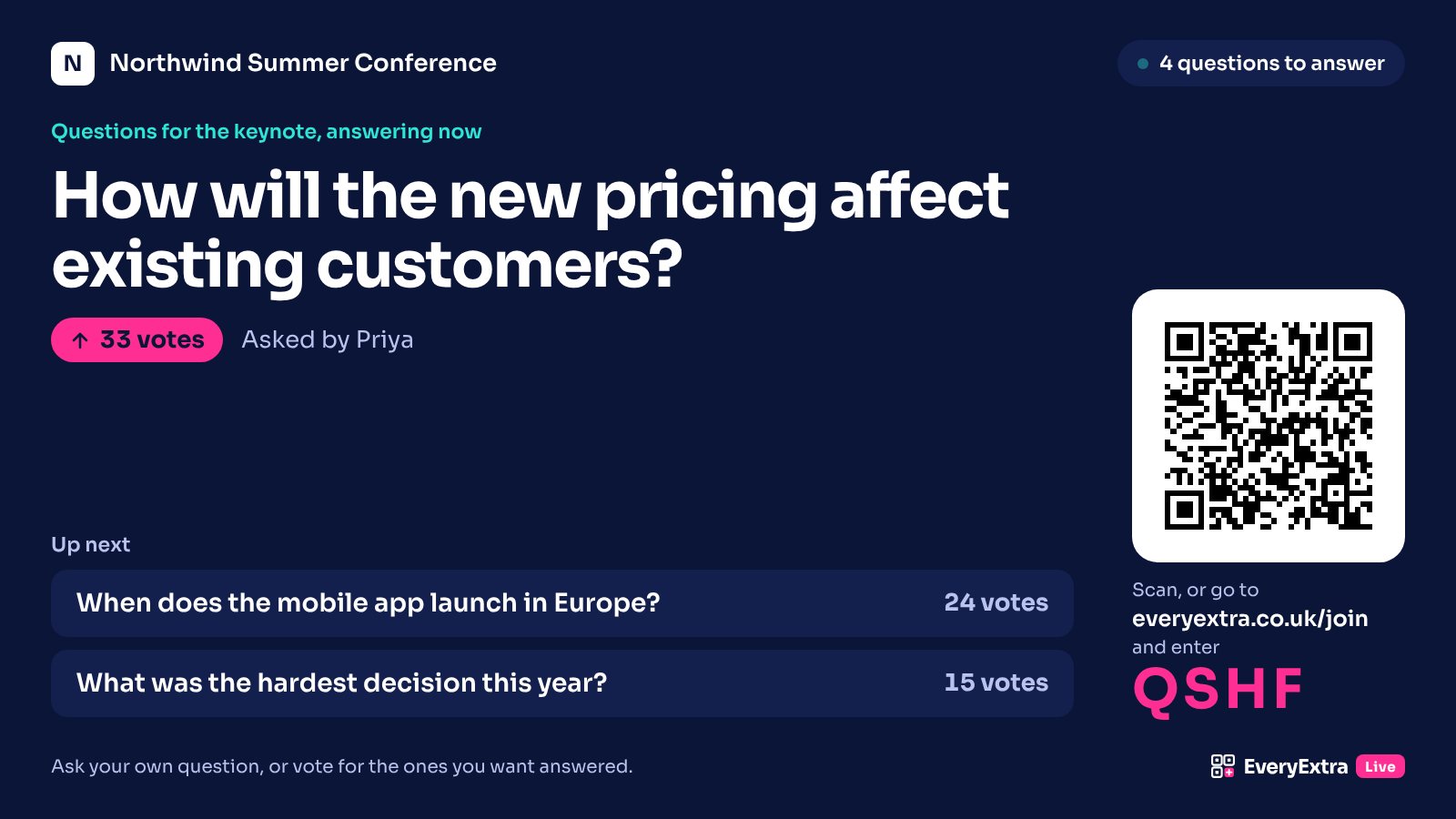
The big screen with one question in the spotlight, its votes and who asked it. A real screen from the business demo.
Who Sees What
Attendees
Scan your event’s QR code, tap Live and type a question. Vote for other people’s with one tap. No app, no account.
Your Speaker Or Host
A private presenter link shows questions as they arrive, sorted by votes, with buttons to show one on screen and mark it answered.
The Big Screen
The top questions, or the one being answered right now, shown large with the code to join.
More Of What The Room Sees
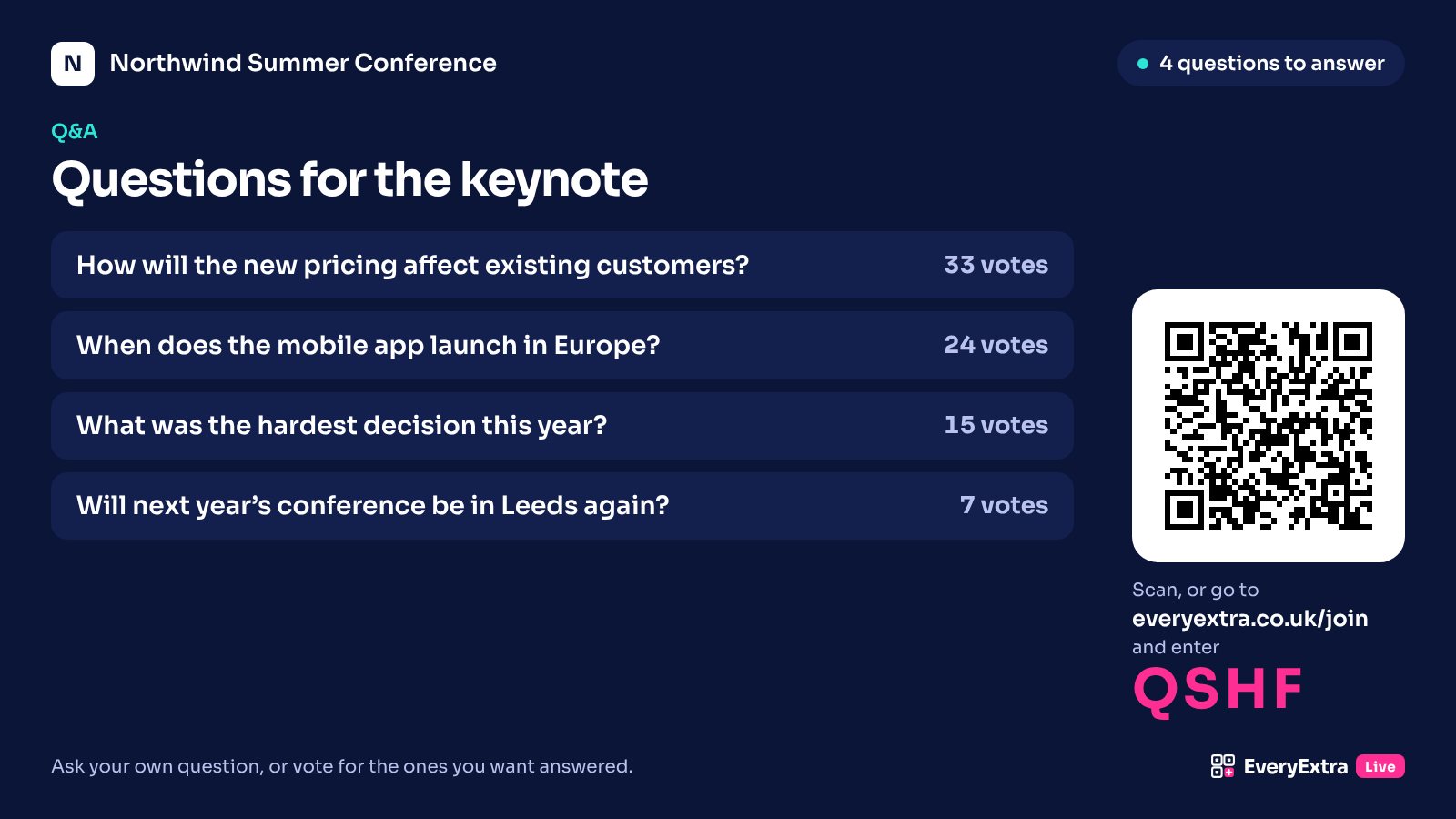
The big screen during a Q&A: the questions with the most votes, and the code to join
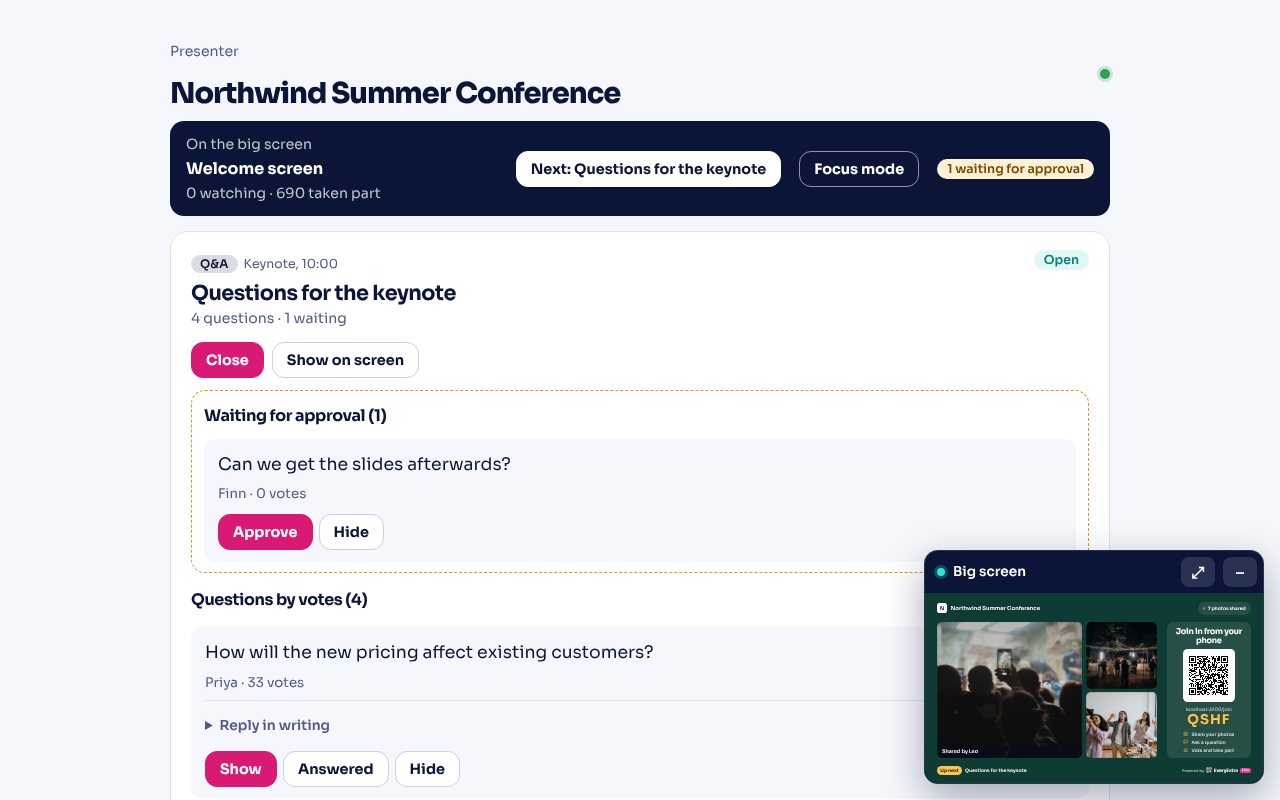
The presenter’s private link: questions sorted by votes, with buttons to show one on screen
Set It Up In Three Steps
Add A Q&A For Each Talk
Name the session it belongs to and choose whether questions need approval.
Share The Presenter Link
Your speaker opens it on a laptop or tablet. No sign-in needed.
Open It When The Talk Starts
Questions arrive live. Afterwards, every question and its votes are in your report.
Your Choices
Approve First
Questions wait for you or your presenter to approve them. That’s the default, and you can switch it off.
Anonymous Or Named
Let people ask without their name, which gets you more honest questions, or require a name.
One Q&A Per Session
Give each talk its own Q&A, and each speaker a link that shows only their questions.
Nothing Unexpected On Screen
Anything that may contain a rude word is always held back for you to check.
Reply In Writing
Ran out of time on stage? Type an answer afterwards and it shows under the question on everyone’s phone.
A Moderator Link
A colleague approves, hides and replies from their own link, without touching what’s on the big screen.
Focus Mode For The Lectern
One question at a time in large type, with what’s coming next and a clock.
Good For
- Conference keynotes and panels
- Town halls and all-hands meetings
- Leadership Q&As where people want to ask anonymously
- Webinars and hybrid events
Your Questions Answered
Can people ask anonymously?
Yes, by default. Anonymous questions show without a name to the presenter and on screen. You can require names instead.
Can we check questions before they appear?
Yes. Questions wait for approval by default, and your presenter can approve them from their own link.
Can a colleague help with the questions?
Yes. Send them the moderator link. They can approve, hide and reply to questions, but can’t open activities or change the big screen.
More Of EveryExtra LIVE
Every activity runs from the same QR code, presenter link and big screen.
Live Polls
Ask the room anything and watch the results build on screen.
See how it worksWord Clouds
One word from everyone becomes a picture of the room.
See how it worksIdeas Board
Collect ideas from everyone, then let the room vote the best to the top.
See how it worksLive Quiz
Timed questions, points for speed and a leaderboard on the big screen.
See how it worksSurveys
Feedback before people leave, with live charts and a report.
See how it worksSpin The Wheel
A wheel of names, prizes or outcomes that spins on the big screen and every phone.
See how it worksAwards
Present every award on the big screen, with each winner on everyone’s phone.
See how it worksAll Of EveryExtra LIVE
How every activity, the presenter link and the big screen work together.
See the overviewWhy A Live Q&A Gets Better Questions
The microphone moment at the end of a talk is always the same. A long pause, then one confident person asks a question that isn’t really a question, and the session runs out of time before anyone else gets a turn. Most of the room never asks what they wanted to know.
A live Q&A changes that. Everyone can ask from their seat, at any point in the talk, while the thought is fresh. Everyone can vote for the questions they want answered too, so your speaker sees what the whole room cares about, not just the loudest person in it. Anonymous questions are allowed by default, which matters at town halls and leadership sessions where people won’t ask the difficult question with their name on it.
Running It Well
- Mention the Q&A at the start of the talk, not the end, so questions build up while people listen
- Show the code on screen during the first few minutes, then again before questions
- Keep approval switched on for formal events, and ask a colleague to moderate
- Ask your speaker to read the top three questions, then take more from the floor if there’s time
- Reply in writing afterwards to the questions you didn’t reach, so nobody is left hanging
One Q&A Per Session
At a conference, give each talk and each panel its own Q&A. Each speaker gets a presenter link that shows only their questions, so nothing gets mixed up between rooms, and your report shows the questions for every session separately. Open each one when its session starts and close it when it ends, or set times in advance and let them open and close by the clock.
Setting Up The Big Screen
You don’t need special equipment. Open the big-screen link in any web browser on the laptop connected to the venue’s screen or projector, and press full screen. Your presenter uses their own private link on a laptop, tablet or phone, and the big screen follows them. Test both at the venue before people arrive, on the venue’s own wifi, and keep the laptop plugged into the mains.
Attendees join with the same QR code as your event’s photo gallery, so there’s only ever one code to show. Put it on the screen, on the tables and in the programme, and people can join in at any point in the day.
One Code, Every Activity
Every EveryExtra LIVE activity runs from the same QR code, the same presenter link and the same big screen. Open a word cloud to start the day, a Q&A for each talk, a poll or two in the afternoon, a quiz after dinner and a survey to close, and attendees never need to scan anything new. Everything they do sits on the Live tab of your event, beside the photo gallery, so people who are sharing photos are already one tap away from joining in.
Prepare as many activities as you like before the day and open each one at the right moment, or set times and let them open and close by the clock. Your report keeps every result in one place afterwards.
Included With Business Events
EveryExtra LIVE is our own business clients’ tool. It comes with the business event packages you book with us directly, alongside photo and video sharing, your logo on everything, a live slideshow and attendees’ contact details if you’d like to collect them. There are no per-attendee charges and no app for anyone to download. Ask for a quote and we’ll reply with a price, usually within one working day, or try every activity for yourself in the business demo first.
After The Event
Every question, its votes, whether it was answered and any written reply is in your event report, as a designed PDF and a spreadsheet. It’s a record of what your audience really wanted to know, which is useful for the speaker, for your next agenda and for the follow-up email to attendees.
More Questions
How many questions can people ask?
As many as they like. Votes keep the most popular ones at the top.
Can the presenter see who asked?
Only if the attendee gave their name. Anonymous questions show without one.
Add It To Your Next Event.
Tell us about your event and we’ll reply with a price, usually within one working day. Or try it now in the business demo.